

The report, the result and the label—in one place.
Review the exact tests reported for each published sample or lot, open the independent lab source, and create a vial label whose QR returns to that same record.
Exact report
Task, sample or lot reference shown
Reported results
Only tests present in the source are listed
Permanent QR path
Short PSA verification URL per record
Find a report
Search by product, SKU, task number, sample reference or lot number.
Public archive
Published COAs
The source note distinguishes a supplier sample report from a PSA-specific production lot.
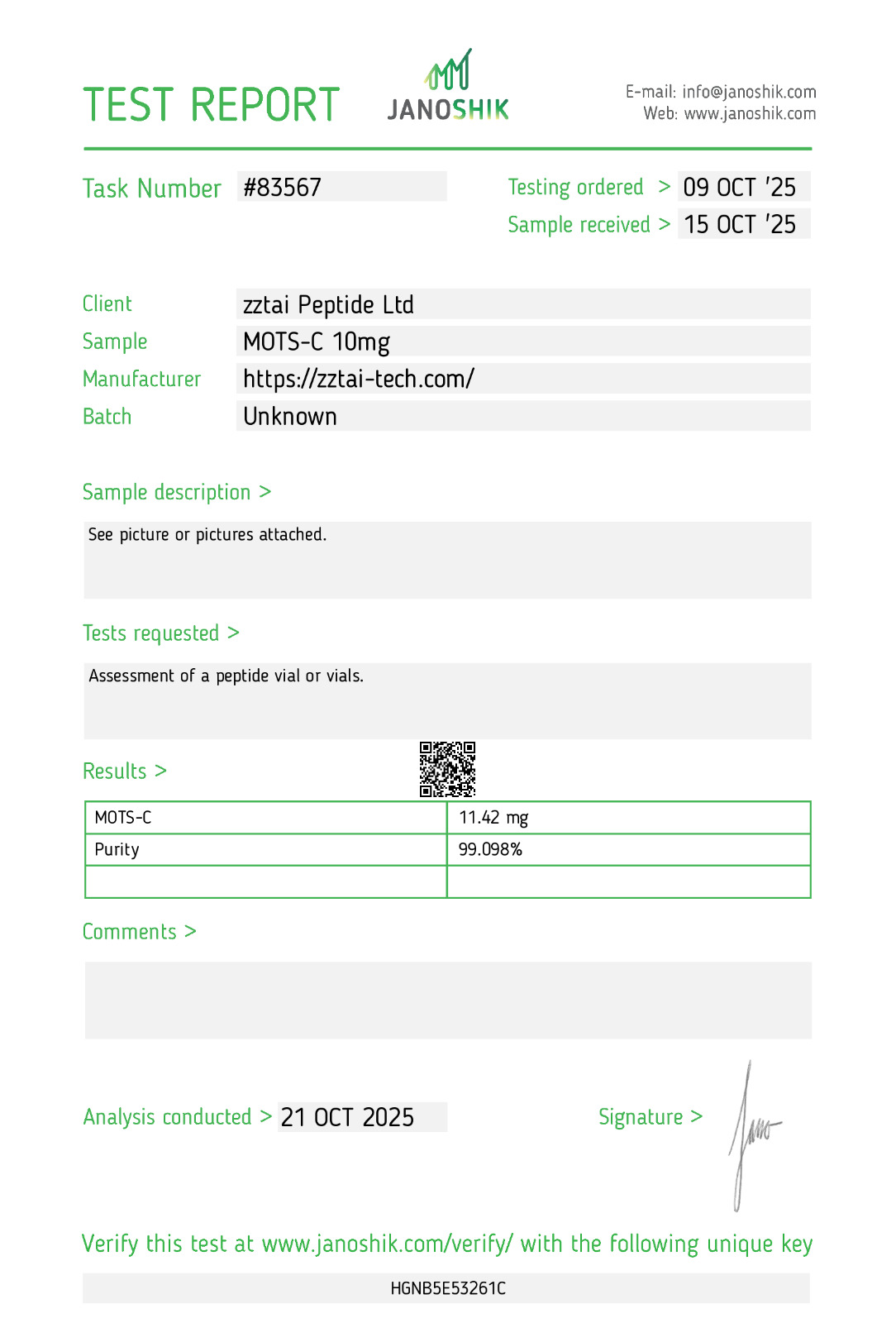
Scope note: This report identifies the submitted sample as MOTS-C 10mg and names Zztai Peptide Ltd. as the client. Its batch is reported as Unknown, so it verifies the published lab report—not a unique PSA vial or lot.
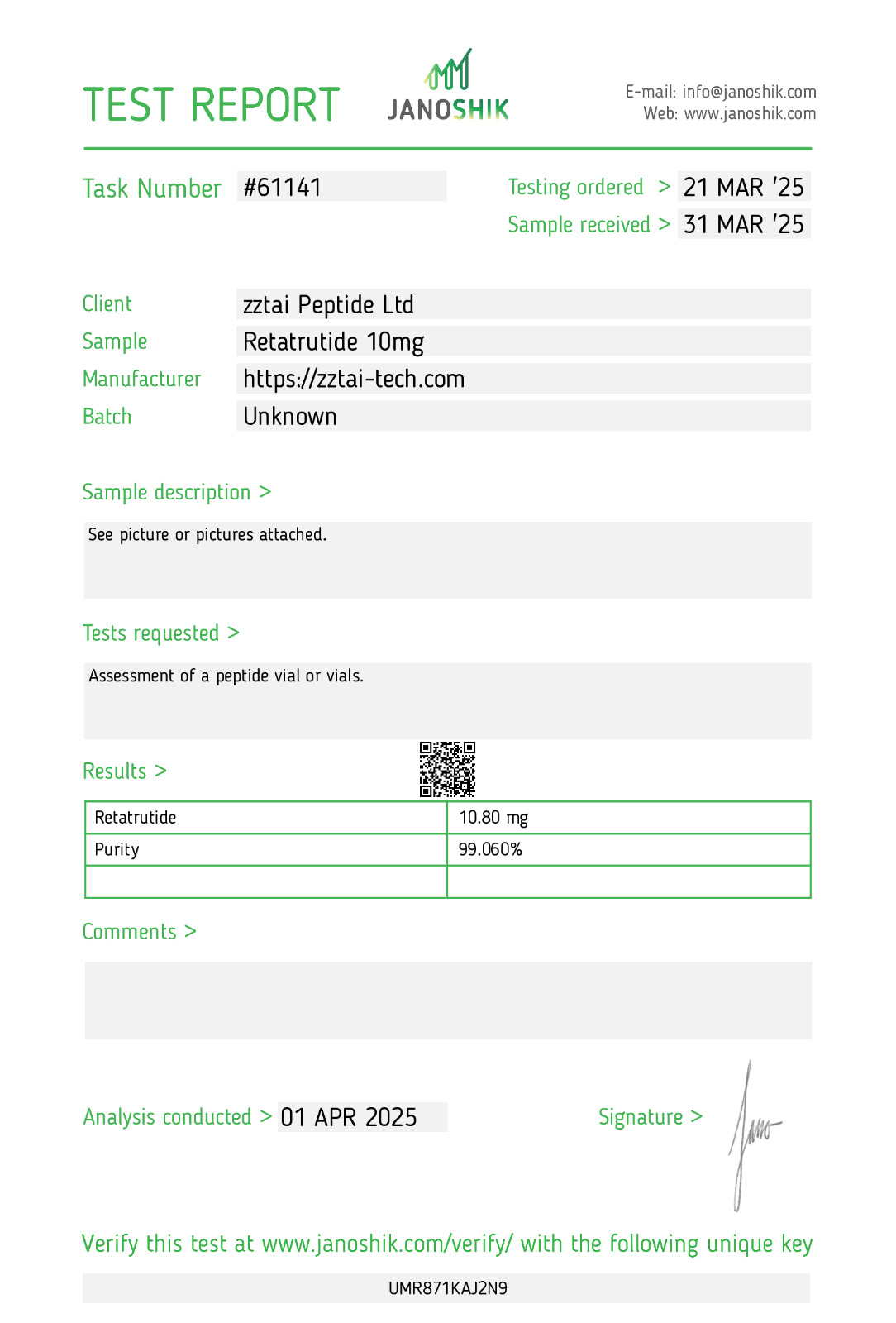
Scope note: This report identifies the submitted sample as Retatrutide 10mg and names Zztai Peptide Ltd. as the client. Its batch is reported as Unknown, so it verifies the published lab report—not a unique PSA vial or lot.
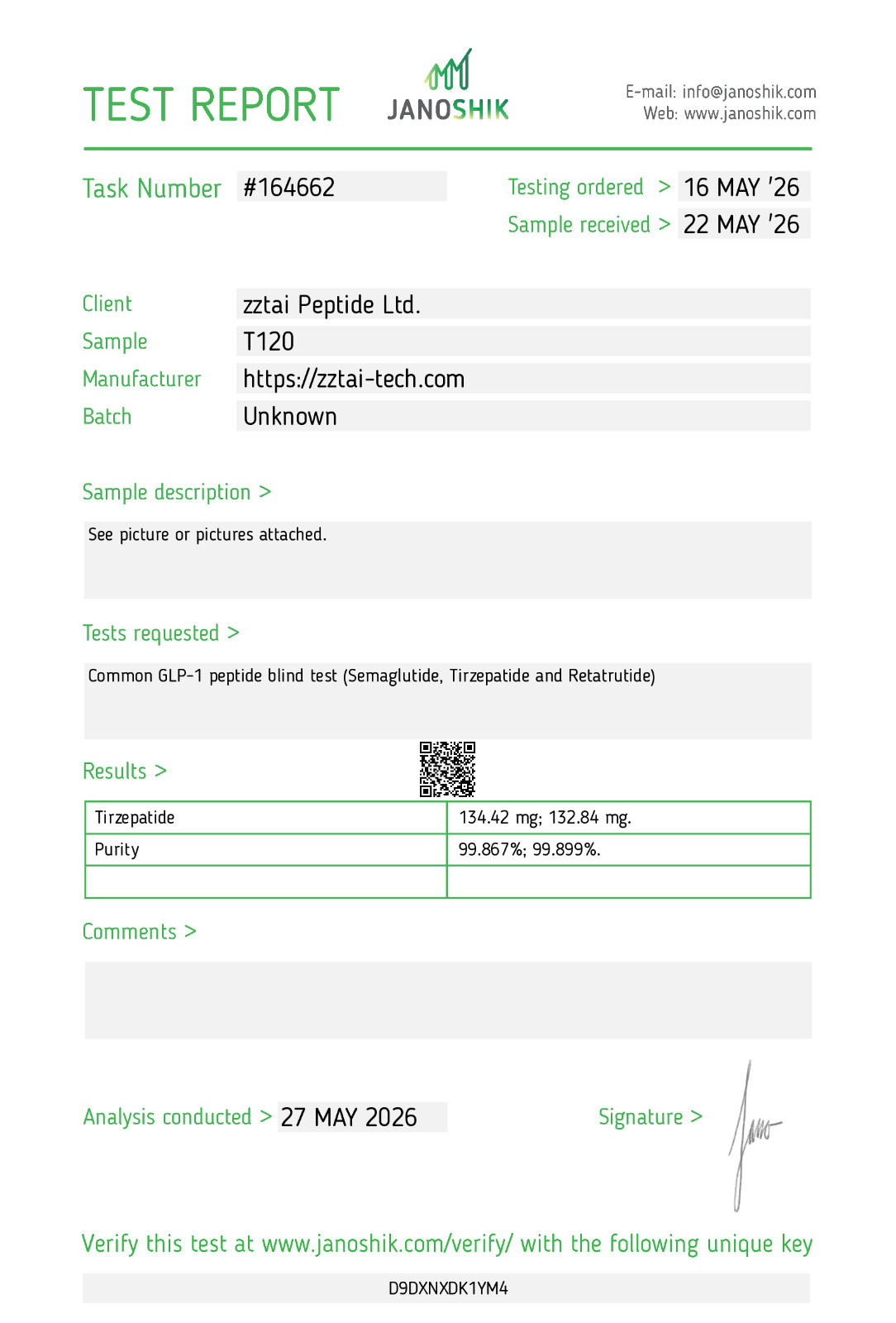
Scope note: This report identifies the submitted sample as T120, names Zztai Peptide Ltd. as the client, and reports 134.42 mg and 132.84 mg. Its batch is reported as Unknown and it does not identify a 20 mg PSA lot, so it verifies the published source report—not a unique PSA vial or lot.
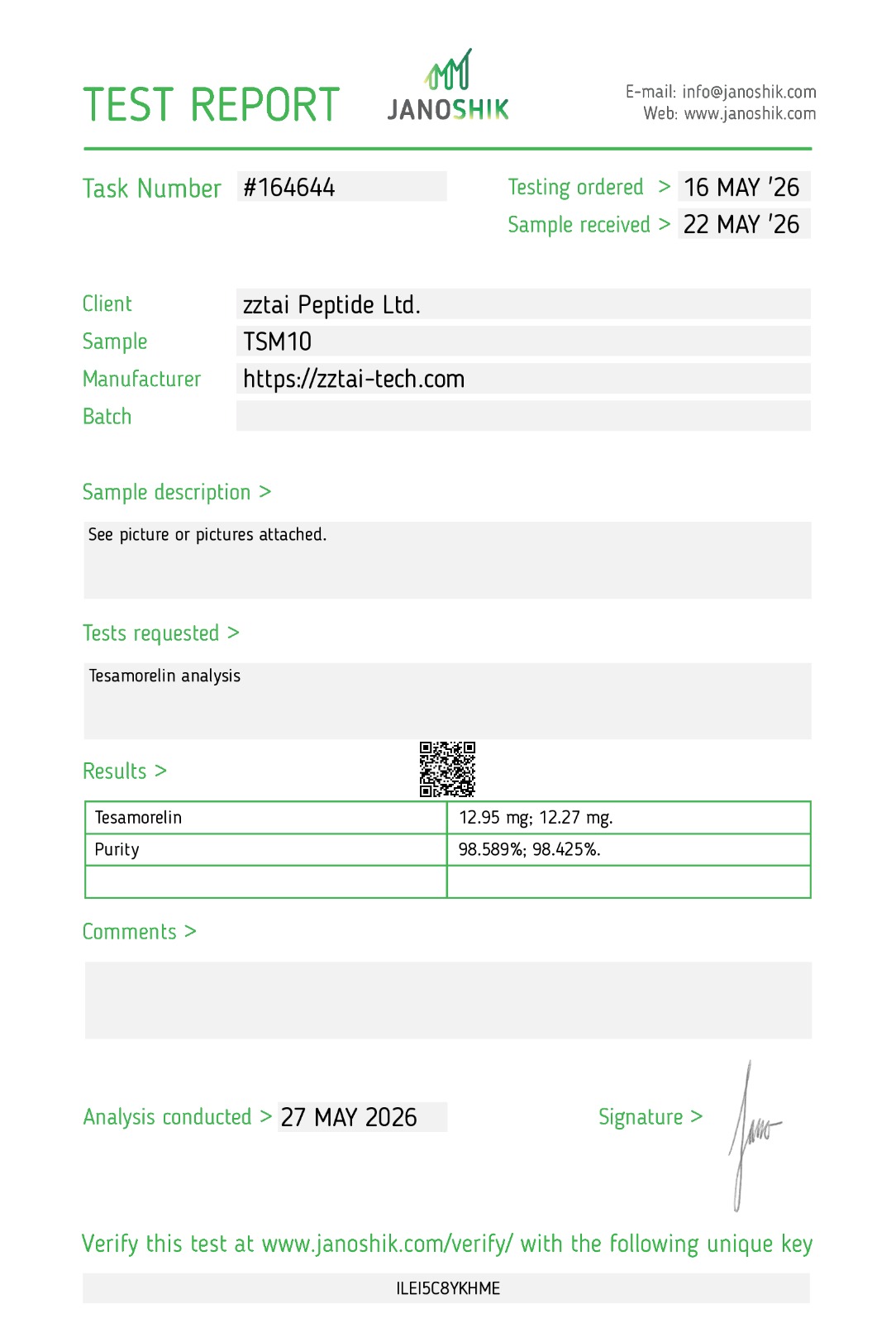
Scope note: This report identifies the submitted sample as TSM10 and names Zztai Peptide Ltd. as the client. Its batch field is blank, so it verifies the published lab report—not a unique PSA vial or lot.
Optimized for the Nelko P21 40 × 14 mm roll and Brother VC-500W 45 × 25 mm tape.
Verified label studio
COA-linked vial labels
Every QR uses a short, PSA-owned verification path. For Nelko prints, create the QR natively in the app so image resizing cannot soften the code.
QR → https://peptide-south-africa.com/v/m01
Native export: 320 × 112 px · 40 × 14 mm
Camera-safe Nelko workflow
Tap Copy native QR link, then save or share the Nelko background.
In the Nelko app, select the P21 40 × 14 mm label and import the background at 100%.
Use Nelko's QR code tool, paste the copied link and place the native QR over the blank left square.
Keep the QR black on white and as large as the left square allows. Do not add a border or other artwork around it.
Use the darkest/highest-quality print setting. Scan the first label while it is still flat, then apply it with the QR centred on the visible face of the vial.
If the flat label scans but the vial does not, the vial curvature—not the URL—is the failure point.